Direct cable connection is gone...
I guess I should say that I haven't figured it out yet rather than that it doesn't work... Just like everything else in Win 7 it takes a bit more time to figure out because it is new. In all reality I don't even know how important it is anyway.
Last night I was xferring a couple files (Win 7 RC ISO file so I can burn a disk...) and they were rather large, over 3Gb each. This Dell Latitude D630 has an Intel 4965 AGN wireless adapter, which connects at a minimum of 130 mps, but the IBM ThinkPad T60 has only an Intel 3945 ABG that will max out at 54 mps. Ever transfer a file at 54 mps?
I used to, back when slow networks were all the rage. Here at home I have a gigabit ethernet backbone thru a Link-Sys (Cisco) switch, with a D-Link DIR-655 wireless N router connected to the DSL modem. With a 25/2 connection, shit screams across the Internet here. It easily supports all I wanna do, as well as the other dozen or so computers on the network at any one given moment. The local gigabit speeds aren't really necessary, unless you are xferring large files and want to do it in a short amount of time. Nice to have though, seeing how almost everything I have on the network has a gigabit adapter.
So I figure that I can use the gigabit adapters in these 2 laptops to xfer files much quicker than the 54 mps the IBM will max out at. Again, I figured wrong. Connecting a crossover ethernet cable and setting static IP addresses was all anyone needed to do with XP, and I have used it numerous times in the past. Even at a lowly 100 mps things go rather quickly.
Win7 is advanced enough that I don't even need to use a crossover cable, a regular CAT5e cable will work, apparently. They connect easy enough, but if you think I could get them to talk to each other, boy were you wrong. I still haven't figured this out. Luckily I have the hard drives with the previous OS still intact, and if I can't figure this out in Win7 I am gonna pop the old drives back in just to test Vista and XP to see if the laptops actually do work in this direct-connect configuration.
Anyway, one thing Win7 WILL do is burn an image file, natively. Just double click the ISO file, and Windows Disk Image Burner pops up and prompts you to choose or verify your CD/DVD burner drive. Kinda cool, really. I wonder what else will surprise me next...
I imagine if I can get this direct connect thing working, it will surprise me. M$ dropped direct connect FireWire support with Vista, but I imagine you can get 480 mps throughput with USB. Or so they claim. Kinda like new car MPG ratings. You only get that mileage going downhill, coasting in neutral with a tailwind. In order to get 480 mps throughput with USB you need to connect two supercomputers in a refrigerated server room and use pure gold cable. Go figure.
Anyway it appears as though Win7 is pretty stable, I have installed it on a few machines and except for one installation in particular, they have all been rock-solid stable. Other than the few annoyances detailed in this blog things run OK, and if they don't run OK, there are tricks you can pull to get then going. Like running video drivers in compatibility mode. Sure, it isn't the best thing to do, but to me, the end always justifies the means.
Showing posts with label D630. Show all posts
Showing posts with label D630. Show all posts
Wednesday, June 10, 2009

Wednesday, June 3, 2009
Remove the ANNOYING Shortcut Arrow
This describes how to get rid of the shortcut arrow overlay...
(credit goes to WinHelpOnline)
(credit goes to WinHelpOnline)
Remove or modify the Shortcut overlay
Method 1
Download Vista Shortcut Overlay Remover (FxVisor) from frameworkx. FxVisor allows you to either way to modify or remove the shortcut overlay arrow in Windows 7 and Vista. Here is the screenshot of that utility: (screenshot removed becaause they are assholes)
Method 2
Removing the shortcut arrow: Download blank_icon.zip and extract the file blank.ico to a folder of your choice. In this example, we use C:\Icons\blank.ico as the path to the icon file you downloaded. And then follow these steps:
- Click Start, type regedit.exe and press ENTER
- Navigate to the following branch:
HKEY_LOCAL_MACHINE \ SOFTWARE \ Microsoft \ Windows \ CurrentVersion \ explorer \ Shell Icons
- In the right pane, create a new String value (REG_SZ) named 29
- Double-click 29 and set its Value data as C:\Icons\blank.ico
- Close Regedit.exe and restart Windows
Note: If the Shell Icons branch does not exist already, you'll need to create it.
LET ME MAKE THIS DISCLAIMER - Editing the registry can be dangerous to your computer and your sanity. I cannot be held liable for anything you do while editing the registry of your computer. If you have never edited the registry, or if you feel uncomfortable even thinking about editing the registry, give your laptop to some geek who has done it before, and let them do it for you.
Credits: The overlay icon above (blank.ico) for Windows Vista was created using the freeware IcoFX utility. Thanks to the folks at IcoFX for helping me successfully create an overlay icon for Windows Vista.
Setting Light arrow overlay: If you wish to use a light arrow for Shortcuts, you may do so by downloading lightarrow.zip (includes lightarrow.ico). Copy lightarrow.ico to your Icons folder, and set the Value data for 29 accordingly (see Step 4 above). If you've copied lightarrow.ico to your C:\Icons folder, the Value data would be C:\Icons\lightarrow.ico
Please note I could not get Method 1 to work in Windows 7, Method 2 worked fine!
AHCI SATA mode versus ATA mode...
Is your drive performing at its maximum capacity?
If you are running in ATA mode, probably not. But then again, it depends on if you have a SATA drive or not... A 3GBPS SATA drive will perform better in AHCI mode than it will in regular ATA mode.
What the hell are all these acronyms anyway? Well, in an effort to not bore anyone or actually put them to sleep, here is a brief explanation. (you can get this too, from Google or Wikipedia...)
ATA= Advanced Technology Attachment (also known as Parallel ATA or PATA)
SATA= Serial Advanced Technology Attachment
AHCI= Advanced Host Controller Interface
GBPS= Giga Bytes Per Second (not giga BITS per second, which is different...)
DMA= Direct Memory Access
SCSI= Small Computer System Interface
SSD= Solid State Drive
Suffice it to say that AHCI is a better implementation, or a more ADVANCED version of ATA. It allows for things such as hot-swapping and native command queuing that make drive access and sustained throughput rates faster and larger, respectively. It is a standard that is NOT supported by XP, partially implemented in Vista and has native support in Windows 7.
Will your computer support this new mode? Chances are, if it shipped with Vista installed, then yes. Only way to tell is to check the BIOS, in my case the laptop shipped with Vista downgraded to XP and because of the lack of support for this mode in XP the default from Dell was OFF.
So what do I do? I see it is off, so I enable it in the BIOS. Then try to boot... Instant BSOD (Blue Screen Of Death). Seems as though if you don't enable it upon initial installation, then the OS isn't prepared for it properly. (driver needs to load first...) You can first change the registry entry that loads the driver, then enable it in the BIOS upon next restart though. Let me warn you again - Editing the registry can be dangerous to your computer and your sanity. I cannot be held liable for anything you do while editing the registry of your computer. If you have never edited the registry, or if you feel uncomfortable even thinking about editing the registry, give your laptop to some geek who has done it before, and let them do it for you.
Couple AHCI mode with a fast hard drive and you get wicked, almost evil performance from your hard drive. Unless you are running a fiber-channel SCSI drive subsystem you can attain the fastest drive access using AHCI mode and hi-RPM drives. (talking 7200 RPM and greater) The only other thing that can begin to compete is SSD, which has no moving parts and can achieve faster access times. Throughput is a problem with SSD, and here is where large, fast AHCI SATA drives can outperform anything else.
In all reality we are talking about nanoseconds here, chances are as humans we wouldn't see any difference. I can hear many of you saying 'Who gives a shit anyway, I just want Windows to BOOT..." And I understand that. It is just that I want more out of my stuff than the regular guy on the street. I want it to do all it is supposed to do. If it has a 'regular' and 'fast' mode I am gonna choose FAST. And I think YOU should do that too. If it doesn't work, MAKE it work. If you don't know how to make it work, then LEARN how to do it.
If I can do it, you can too.
If you are running in ATA mode, probably not. But then again, it depends on if you have a SATA drive or not... A 3GBPS SATA drive will perform better in AHCI mode than it will in regular ATA mode.
What the hell are all these acronyms anyway? Well, in an effort to not bore anyone or actually put them to sleep, here is a brief explanation. (you can get this too, from Google or Wikipedia...)
ATA= Advanced Technology Attachment (also known as Parallel ATA or PATA)
SATA= Serial Advanced Technology Attachment
AHCI= Advanced Host Controller Interface
GBPS= Giga Bytes Per Second (not giga BITS per second, which is different...)
DMA= Direct Memory Access
SCSI= Small Computer System Interface
SSD= Solid State Drive
Suffice it to say that AHCI is a better implementation, or a more ADVANCED version of ATA. It allows for things such as hot-swapping and native command queuing that make drive access and sustained throughput rates faster and larger, respectively. It is a standard that is NOT supported by XP, partially implemented in Vista and has native support in Windows 7.
Will your computer support this new mode? Chances are, if it shipped with Vista installed, then yes. Only way to tell is to check the BIOS, in my case the laptop shipped with Vista downgraded to XP and because of the lack of support for this mode in XP the default from Dell was OFF.
So what do I do? I see it is off, so I enable it in the BIOS. Then try to boot... Instant BSOD (Blue Screen Of Death). Seems as though if you don't enable it upon initial installation, then the OS isn't prepared for it properly. (driver needs to load first...) You can first change the registry entry that loads the driver, then enable it in the BIOS upon next restart though. Let me warn you again - Editing the registry can be dangerous to your computer and your sanity. I cannot be held liable for anything you do while editing the registry of your computer. If you have never edited the registry, or if you feel uncomfortable even thinking about editing the registry, give your laptop to some geek who has done it before, and let them do it for you.
Couple AHCI mode with a fast hard drive and you get wicked, almost evil performance from your hard drive. Unless you are running a fiber-channel SCSI drive subsystem you can attain the fastest drive access using AHCI mode and hi-RPM drives. (talking 7200 RPM and greater) The only other thing that can begin to compete is SSD, which has no moving parts and can achieve faster access times. Throughput is a problem with SSD, and here is where large, fast AHCI SATA drives can outperform anything else.
In all reality we are talking about nanoseconds here, chances are as humans we wouldn't see any difference. I can hear many of you saying 'Who gives a shit anyway, I just want Windows to BOOT..." And I understand that. It is just that I want more out of my stuff than the regular guy on the street. I want it to do all it is supposed to do. If it has a 'regular' and 'fast' mode I am gonna choose FAST. And I think YOU should do that too. If it doesn't work, MAKE it work. If you don't know how to make it work, then LEARN how to do it.
If I can do it, you can too.
Saturday, May 30, 2009
Complete 40M-75M Field Day Setup
OK, here is my contribution, listed as best I can.
I hope KT1Q and N1GWL can list their contributions here as comments...
(note you can click on many items and view either the manufacturers site or the actual product itself)
Yaesu FT-100D HF-440 rig
Yaesu MD-100 Microphone
West Mountain RigBlaster Pro
Dell Latitude D630 running Win 7
Astron RS-50M Power Supply
West Mountain RigRunner 4010S
LDG Z-11 Pro Auto Tuner
Daiwa CN-101 SWR/Power Meter
Heil HC-4 ProSet headset
Bird Model 43 ThruLine Wattmeter
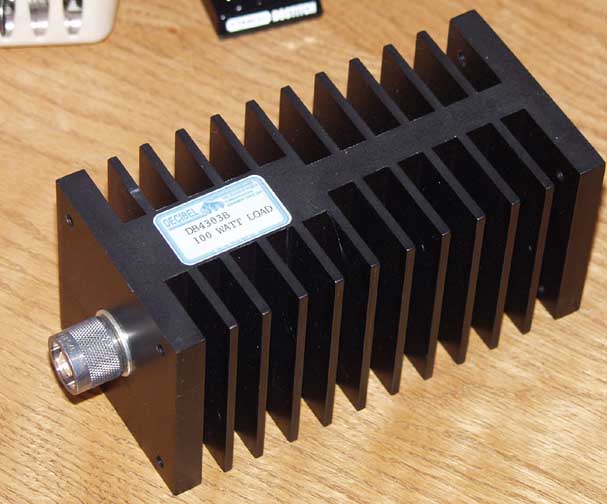
Decibel DB4303G Dummy Load
West Mountain PwrGate Controller
Another important piece of equipment often overlooked is the User Manuals. I cannot say how many times I have been told to RTFM (Read The Fine Manual), and equally as many times it has saved my ass. I do have to confess that my book-reading for pleasure was replaced long ago by reference materials and technical bulletins. One of the easiest things to do is to compile all the manuals in .PDF format and put them in your My Documents folder. If you have the ambition, write the manuals to a CD or DVD (depending on size) and if you have a duplex (print on both sides) printer, print them out and place them in a 3-ring binder. Personally my 3-ring binders tend to come out more like a 3-ring circus, but you get the drift of what I am trying to say.
Here is a shot of the setup on the kitchen table:

There isn't a lot of detail you can see in this shot but I will post more about the specific setup. I know a lot of you are thinking 'Jeez, just bring your rig and set it up, no need for all this extra crap...' and at times I tend to agree. But that is what eventually makes the difference between an average station and a top-scoring station. Field Day isn't just an exercise, it is a contest.
I hope KT1Q and N1GWL can list their contributions here as comments...
(note you can click on many items and view either the manufacturers site or the actual product itself)
Yaesu FT-100D HF-440 rig
Yaesu MD-100 Microphone
West Mountain RigBlaster Pro
Dell Latitude D630 running Win 7
Astron RS-50M Power Supply
West Mountain RigRunner 4010S
LDG Z-11 Pro Auto Tuner
Daiwa CN-101 SWR/Power Meter
Heil HC-4 ProSet headset
Bird Model 43 ThruLine Wattmeter

Decibel DB4303G Dummy Load
West Mountain PwrGate Controller
Another important piece of equipment often overlooked is the User Manuals. I cannot say how many times I have been told to RTFM (Read The Fine Manual), and equally as many times it has saved my ass. I do have to confess that my book-reading for pleasure was replaced long ago by reference materials and technical bulletins. One of the easiest things to do is to compile all the manuals in .PDF format and put them in your My Documents folder. If you have the ambition, write the manuals to a CD or DVD (depending on size) and if you have a duplex (print on both sides) printer, print them out and place them in a 3-ring binder. Personally my 3-ring binders tend to come out more like a 3-ring circus, but you get the drift of what I am trying to say.
Here is a shot of the setup on the kitchen table:

There isn't a lot of detail you can see in this shot but I will post more about the specific setup. I know a lot of you are thinking 'Jeez, just bring your rig and set it up, no need for all this extra crap...' and at times I tend to agree. But that is what eventually makes the difference between an average station and a top-scoring station. Field Day isn't just an exercise, it is a contest.
Friday, May 29, 2009
You're Gonna Love Windows 7...
Because it works. It just WORKS.
It is almost CREEPY how well it works. You just put the DVD in, and boot. Answer a couple simple questions, choose some drive options if you want (optional) and go. Come back 15 minutes later and it asks you what you want to call the computer and your account. Simple enough for a Mac user to do all by themself.
Now to see if it will do full-duplex... nope. At least not without some modifications...
Apparently I need to have the Sigmatel HD Audio driver installed in order for the Dell Latitude D630 to do full duplex. But yes, with the registry modifications listed in a previous post, I can get the laptop to do full-duplex on Windoze 7 easily. Works great now!
Windows 7 comes with almost every driver known to man, except for some older or possibly specialized devices. The audio came up easily on this laptop by default out-of-the-box, using the Microsux driver built into the OS. It hasn't recognized the USB-to-serial adapter yet, and I don't quite know if I even need it (this laptop has a 9-pin serial port), but it would be nice to have multiple serial ports available if necessary. Problem is, I don't know if I wanna deal with the inherent latency of the USB operated stuff...
Win 7 runs incredibly fast, on this laptop it is not a fair comparison to what most people run, but I installed it on a Dell Dimension 2400 desktop system this morning (32-bit version) and it is fine. The system is a single-core 2.8GHz machine with standard integrated Intel video and networking. It ran XP before (not great) but WIn 7 runs as well or better. I did need to trick the video driver so that I could get it to display a resolution greater than 640X480, but everything else was recognized easily and the system joined my domain after I authenticated properly.
The trick I used to fool the system is a standard procedure that is commonly used for 'compatibility'. The Dell 2400 has integrated Intel video on the motherboard, and unfortunately it is old enough (from 2004) so that Microskank feels it doesn't need to include drivers. So what if it is only 64M video? I extracted the video driver I got from Dell's Support site to a spot on the hard drive, and then ran the Setup.EXE file in 'compatibility' mode. This effectively removes the driver header information that specifies the designed OS from the .inf file and allows the program to run despite the OS mismatch. Worked great, and I had resolutions up to 1280X1024 when I was done. Piece of cake...
N3FJP Field Day Logger 2.8 seems to install and run fine, I will give it a workout this weekend when I get a chance to record some audio. I also wanna try GoldWave vs. Audacity to see where the better/easier audio will come from. I have never used Audacity, maybe Brad N1JIF can give me a hand. He also said he would snap some shots (not like I couldn't do it...) of the setup so we have something to refer to when it comes time to set it up again. I mainly wanna get shots of the RigBlaster jumper setup, we may need to change that if we have to switch to the backup rig (Yaesu FT-897). I have a feeling the backup rig can be used for VHF/UHF very easily, I think I will bring the truck-mounted mast down. I have a rotor for the thing (light-duty) all we need is a decent 2M/440 beam and an amp or two. We are allowed 150 watts you know...
I still can't get over how slick Win 7 installs and gets up and running. I started the install at 9:PM, and it is 10:30 and I have been blogging on the laptop for over 30 minutes now. Even when I go look for problems, it apparently just takes care of itself with a button-click or a check-box. It DOES take a little getting used to, but if you have used Vista it will be easy to migrate your skills. Moving from XP to Win 7 will throw you for a loop if you aren't ready for it, you will ask yourself over and over 'Where the hell did they put it this time?'.
One neat aspect of the new OS that photographers will like is the ability to calibrate your monitor. This is HUGE. Color accuracy isn't so much a big deal to color-blind people like me, but I have always felt that because of my handicap I have an increased sense of contrast and dynamic range. I think I can see better than most in the dark, and I can tell subtle differences in things others might miss. I can't tell green from brown, but I can see details...
 I am certain it will become a bit more cluttered than this as I get things installed. This evaluation doesn't run out until March of next year (June actually...) and the HD I installed this on is only 120G, so I imagine I can't cram too much crap into this. Time will tell.
It is almost CREEPY how well it works. You just put the DVD in, and boot. Answer a couple simple questions, choose some drive options if you want (optional) and go. Come back 15 minutes later and it asks you what you want to call the computer and your account. Simple enough for a Mac user to do all by themself.
Now to see if it will do full-duplex... nope. At least not without some modifications...
Apparently I need to have the Sigmatel HD Audio driver installed in order for the Dell Latitude D630 to do full duplex. But yes, with the registry modifications listed in a previous post, I can get the laptop to do full-duplex on Windoze 7 easily. Works great now!
Windows 7 comes with almost every driver known to man, except for some older or possibly specialized devices. The audio came up easily on this laptop by default out-of-the-box, using the Microsux driver built into the OS. It hasn't recognized the USB-to-serial adapter yet, and I don't quite know if I even need it (this laptop has a 9-pin serial port), but it would be nice to have multiple serial ports available if necessary. Problem is, I don't know if I wanna deal with the inherent latency of the USB operated stuff...
Win 7 runs incredibly fast, on this laptop it is not a fair comparison to what most people run, but I installed it on a Dell Dimension 2400 desktop system this morning (32-bit version) and it is fine. The system is a single-core 2.8GHz machine with standard integrated Intel video and networking. It ran XP before (not great) but WIn 7 runs as well or better. I did need to trick the video driver so that I could get it to display a resolution greater than 640X480, but everything else was recognized easily and the system joined my domain after I authenticated properly.
The trick I used to fool the system is a standard procedure that is commonly used for 'compatibility'. The Dell 2400 has integrated Intel video on the motherboard, and unfortunately it is old enough (from 2004) so that Microskank feels it doesn't need to include drivers. So what if it is only 64M video? I extracted the video driver I got from Dell's Support site to a spot on the hard drive, and then ran the Setup.EXE file in 'compatibility' mode. This effectively removes the driver header information that specifies the designed OS from the .inf file and allows the program to run despite the OS mismatch. Worked great, and I had resolutions up to 1280X1024 when I was done. Piece of cake...
N3FJP Field Day Logger 2.8 seems to install and run fine, I will give it a workout this weekend when I get a chance to record some audio. I also wanna try GoldWave vs. Audacity to see where the better/easier audio will come from. I have never used Audacity, maybe Brad N1JIF can give me a hand. He also said he would snap some shots (not like I couldn't do it...) of the setup so we have something to refer to when it comes time to set it up again. I mainly wanna get shots of the RigBlaster jumper setup, we may need to change that if we have to switch to the backup rig (Yaesu FT-897). I have a feeling the backup rig can be used for VHF/UHF very easily, I think I will bring the truck-mounted mast down. I have a rotor for the thing (light-duty) all we need is a decent 2M/440 beam and an amp or two. We are allowed 150 watts you know...
I still can't get over how slick Win 7 installs and gets up and running. I started the install at 9:PM, and it is 10:30 and I have been blogging on the laptop for over 30 minutes now. Even when I go look for problems, it apparently just takes care of itself with a button-click or a check-box. It DOES take a little getting used to, but if you have used Vista it will be easy to migrate your skills. Moving from XP to Win 7 will throw you for a loop if you aren't ready for it, you will ask yourself over and over 'Where the hell did they put it this time?'.
One neat aspect of the new OS that photographers will like is the ability to calibrate your monitor. This is HUGE. Color accuracy isn't so much a big deal to color-blind people like me, but I have always felt that because of my handicap I have an increased sense of contrast and dynamic range. I think I can see better than most in the dark, and I can tell subtle differences in things others might miss. I can't tell green from brown, but I can see details...
Here is what my current Win 7 desktop looks like, I know it is hard to see because the resolution of the text is so small (1440X900) but you can get an idea at least of how the interface looks.
I am certain it will become a bit more cluttered than this as I get things installed. This evaluation doesn't run out until March of next year (June actually...) and the HD I installed this on is only 120G, so I imagine I can't cram too much crap into this. Time will tell.
Friday, May 22, 2009
EnableInputMonitor = 01
Here is installment #5 of the continuing Field Day Setup Progress Report (no longer named FIASCO!)
No longer a fiasco because I was able to get full-duplex audio working on the Dell D630 Laptop!
For those of you with a Dell Latitude D630 running Microstink Vista (or any computer that uses Sigmatel audio for that matter...) who want to enable full-duplex audio, you will need to edit the registry.
Here is the fix:
HKEY_LOCAL_MACHINE\SYSTEM\ControlSet001\Control\Class\{4D36E96C-E325-11CE-BFC1-08002BE10318}\0000\Settings\filter\SpeakerHp\
Change the Binary Value for EnableIntSpkrMute to 00
Add the Binary Value EnableInputMonitor and set the value to 01
Reboot
Right Click the Volume Speaker Icon by the clock on the taskbar, Select Playback Devices, Double-click Speakers/Headphones, Click the Levels tab, then unmute the Input Monitor option.
LET ME MAKE THIS DISCLAIMER - Editing the registry can be dangerous to your computer and your sanity. I cannot be held liable for anything you do while editing the registry of your computer. If you have never edited the registry, or if you feel uncomfortable even thinking about editing the registry, give your laptop to some geek who has done it before, and let them do it for you.
Works like a charm. I now have inserted a REAL laptop into the main slot, let's see how this one reacts...
Anyway, busy day today, spent all day at a conference in South Burlington at the High School. I used to think our school and network were screwed up. Turns out Woodstock is miles ahead as far as technology is concerned, and we are doing things in a small school that bigger schools can only hope to implement some day. Go figure. It appears as though they have plenty of money though, their auditorium was one of the nicest I have ever seen. Really cool audio and lighting boards. Wish we had that.
Testing will continue with the Dell D630 this weekend. I hope to setup some .wav files, but I have to remember to start Sound Recorder from the command line, as by default it wants to record .wma files. Damned Vista... Yet another ill-behaved Microscam product. At least the D630 has a REAL 9-pin com port. No serial to USB adapter to worry about. Besides, I have always thought the delay introduced by the USB stuff was a problem, I will use the ThinkPad with the USB to serial as a backup now. Mike KT1Q won't need to scrape up a backup laptop after all...
Now that the laptop is working (so far) I am actually getting excited about working Field Day with the SOVARC boys (and girls... I haven't seen Mandy AI1A in ages!). The thought of loading all this crap into the truck is a but unnerving, but I survived the NEAR-Fest, so I guess this isn't too much different. I will be hauling real radio-related stuff instead of junk computer crap. It does seem a bit different to go and play radio in a different area, it would make more sense to hang out with the guys around the Upper Valley (TSRC). Ever since they ruined Field Day for myself and Mike N1MS, I have held a grudge. As past president of TSRC I am utterly appalled at what they have become and the money they waste each year. It is not as though they are rich, but they insist on maintaining a used vehicle lot in the guise of 'Emergency Service'. Best thing I ever did was dis-associate myself from those losers. Now I get to play radio with REAL hams... Or as Ed WA1MAG would say, Ham Radio Buffs...
Sometimes taking a break from things can allow you to clear your mind, look at things from a different perspective, and gain some insight that one would normally overlook. That is what happened here, I had to think about things for a bit, then figure out where to look for answers. And that brings me to the whole purpose for these recent posts, a convenient method to document the trials and tribulations of setting up a Field Day station. It really can only get worse from here...
This Dell Latitude D630 is an awesome laptop. I just can't help bragging about what this thing contains:
Intel T9500 dual-core processor @ 2.6 GHz (this may change, I may swap in a slower processor just for testing purposes, probably a T9300 @ 2.5 GHz...)
8Gb PC2 memory (all addressable, requires BIOS A15)
MS Vista SP1 64-Bit
300Gb 7200 RPM Seagate HD
Sony 16X DVD Dual-Layer optical drive
Optional 9-cell battery (approx 4-hours battery life... depending)
Optional Device Bay battery
Actual 9-pin comm port
1440X900 Display Resolution
Intel 4965 BGN Wireless (230 mps wireless connect to an N-Router)
Gigabyte ethernet
I think now you can see why I prefer to use this laptop. It is a road-warriors dream machine.
Anyway, now that it works, let's see what it can do over the next week, I will keep you all posted here. Leave a comment if you get a minute.
No longer a fiasco because I was able to get full-duplex audio working on the Dell D630 Laptop!
For those of you with a Dell Latitude D630 running Microstink Vista (or any computer that uses Sigmatel audio for that matter...) who want to enable full-duplex audio, you will need to edit the registry.
Here is the fix:
HKEY_LOCAL_MACHINE\SYSTEM\ControlSet001\Control\Class\{4D36E96C-E325-11CE-BFC1-08002BE10318}\0000\Settings\filter\SpeakerHp\
Change the Binary Value for EnableIntSpkrMute to 00
Add the Binary Value EnableInputMonitor and set the value to 01
Reboot
Right Click the Volume Speaker Icon by the clock on the taskbar, Select Playback Devices, Double-click Speakers/Headphones, Click the Levels tab, then unmute the Input Monitor option.
LET ME MAKE THIS DISCLAIMER - Editing the registry can be dangerous to your computer and your sanity. I cannot be held liable for anything you do while editing the registry of your computer. If you have never edited the registry, or if you feel uncomfortable even thinking about editing the registry, give your laptop to some geek who has done it before, and let them do it for you.
Works like a charm. I now have inserted a REAL laptop into the main slot, let's see how this one reacts...
Anyway, busy day today, spent all day at a conference in South Burlington at the High School. I used to think our school and network were screwed up. Turns out Woodstock is miles ahead as far as technology is concerned, and we are doing things in a small school that bigger schools can only hope to implement some day. Go figure. It appears as though they have plenty of money though, their auditorium was one of the nicest I have ever seen. Really cool audio and lighting boards. Wish we had that.
Testing will continue with the Dell D630 this weekend. I hope to setup some .wav files, but I have to remember to start Sound Recorder from the command line, as by default it wants to record .wma files. Damned Vista... Yet another ill-behaved Microscam product. At least the D630 has a REAL 9-pin com port. No serial to USB adapter to worry about. Besides, I have always thought the delay introduced by the USB stuff was a problem, I will use the ThinkPad with the USB to serial as a backup now. Mike KT1Q won't need to scrape up a backup laptop after all...
Now that the laptop is working (so far) I am actually getting excited about working Field Day with the SOVARC boys (and girls... I haven't seen Mandy AI1A in ages!). The thought of loading all this crap into the truck is a but unnerving, but I survived the NEAR-Fest, so I guess this isn't too much different. I will be hauling real radio-related stuff instead of junk computer crap. It does seem a bit different to go and play radio in a different area, it would make more sense to hang out with the guys around the Upper Valley (TSRC). Ever since they ruined Field Day for myself and Mike N1MS, I have held a grudge. As past president of TSRC I am utterly appalled at what they have become and the money they waste each year. It is not as though they are rich, but they insist on maintaining a used vehicle lot in the guise of 'Emergency Service'. Best thing I ever did was dis-associate myself from those losers. Now I get to play radio with REAL hams... Or as Ed WA1MAG would say, Ham Radio Buffs...
Sometimes taking a break from things can allow you to clear your mind, look at things from a different perspective, and gain some insight that one would normally overlook. That is what happened here, I had to think about things for a bit, then figure out where to look for answers. And that brings me to the whole purpose for these recent posts, a convenient method to document the trials and tribulations of setting up a Field Day station. It really can only get worse from here...
This Dell Latitude D630 is an awesome laptop. I just can't help bragging about what this thing contains:
Intel T9500 dual-core processor @ 2.6 GHz (this may change, I may swap in a slower processor just for testing purposes, probably a T9300 @ 2.5 GHz...)
8Gb PC2 memory (all addressable, requires BIOS A15)
MS Vista SP1 64-Bit
300Gb 7200 RPM Seagate HD
Sony 16X DVD Dual-Layer optical drive
Optional 9-cell battery (approx 4-hours battery life... depending)
Optional Device Bay battery
Actual 9-pin comm port
1440X900 Display Resolution
Intel 4965 BGN Wireless (230 mps wireless connect to an N-Router)
Gigabyte ethernet
I think now you can see why I prefer to use this laptop. It is a road-warriors dream machine.
Anyway, now that it works, let's see what it can do over the next week, I will keep you all posted here. Leave a comment if you get a minute.
Thursday, May 21, 2009
This should be easier than it is...
This is part 3 of the Field Day setup fiasco...
Anyway, to continue the saga, I believe I have a full station setup and working. It is not exactly how I would like it to be, but again, this is a work in progress and I finally have a good working base from which I can build.
See the two previous posts below for more info on exactly what I plan on setting up as well as the components I am trying to interface.
To summarize, I have a Yaesu FT-100D rig interfaced to a West Mountain RigBlaster Pro which is connected in many ways to an IBM ThinkPad T60 laptop running 32-bit XP Pro. Power to this system is provided by an Astron RS-50M supply thru a West Mountain RigRunner 4010S, attached to a West Mountain PwrGate and a rather large gel-cell battery as backup. In addition, there is a Diamond cross-needle power/swr meter in the mix as well as an older Panasonic speaker used for audio output. Voice input is provided by either a Yaesu MD-100 desk mic or a Heil ProSet headset (HC-5 DX element).
These are the parts I have working so far. To say I am a fan of West Mountain products is an understatement, their shit just works. Period. Now onto the things I would PREFER to get connected and working:
Dell Latitude D630 laptop running Vista 64-bit
David Clark H10-60 headset with M7 mic
Bird ThruLine wattmeter
Additional Heil headset
The next task to tackle is the D630. In order to use a laptop fully with the RigBlaster Pro interface, you need to have what is called 'full-duplex' audio through your computer. Basically this is the ability to 'un-mute' the microphone input so it can be processed and then passed through the soundcard and back out to the RigBlaster Pro. This is critical to the ability of the Blaster to provide output audio to your headphones as well as the connected rear-panel speaker output. So far I have been unable to accomplish this, but there have been a few posts where I have seen users employ full-duplex on their Vista computers using the proper drivers and settings. All hope is not lost...
On top of that will be the ability to use the David Clark headset, it is an incredible piece of work that has the ability to completely cancel all ambient noise via custom engineered gel-filled earpads. It is no wonder they use these in aircraft. Put these babys on and you are isolated in a world where silence is golden and the ONLY audio you hear is that passed thru the tiny 1/8" plug connected to something. To say these are incredible again is an understatement. Bose could learn a lesson...
The DC H10-60 is the set I have, it has an amplified M-7A microphone that I would love to be able to use while connected to radios or computers. Got these at the Hosstraders hamfest (now NEAR-Fest) years ago, but only have been able to use them as headphones because of my apparent inability to wire the microphone correctly. This shit ain't plug & play, it is more like plug & pray. Maybe I can enlist Randy N1GWL to help, he is wiz-bang at this electronics crap. It needs DC bias current at the mic, so chances are it is either gonna work slick as shit or he will destroy a $70.00 headset cable.
The specifics of the RigBlaster Pro are the neat thing here, it is ultra customizable. It will interface virtually ANY computer & soundcard to ANY radio. The problem is generally gonna be the software you use to git 'r dun. That will be the topic in Part 4 of this diatribe, the insane ramblings of an Extra class part-timer. Psychobabble as Mike KT1Q puts it...
Despite what others might tell you, the most important part of the Blaster interface is not the RS-232 stuff and TTL conversion to control the rig, that is incredibly simple according to the RigBlaster Pro User Guide. It is the Mic connection and configuration to your rig that is the heart of the matter. This took me a week to understand and configure. Thanks Yaesu, for making every rig you manufacture different from the model before.
The FT-100D is a strange beast, but it remains as a workhorse in my shack, even though it was designed to be used mobile. It has data connections on the back, as well as rig control and key/speaker connections. The strange part is the mic connector in the 'front'. You need to remove the faceplate in order to connect the mic, and only certain microphones will work. You can find a link to Yaesu's official list of supported accessories on the web, but I tend to ignore official crap like that. I figure if I have a microphone, and it has some sort of connector, that I am intelligent enough to connect it to the radio somehow. Generally this is the case, and this example is no exception.
The Yaesu MD-100 is a wonderful desk mic, with built-in audio filtering and PTT as well as up/down 'buttons' laid out on a really nice looking stand. Again I bought mine at the Hosstraders (now NEAR-Fest) hamfest a few years back at a very reasonable price. I figured because it sez Yaesu on it that it should connect easily to a Yaesu radio, right? Yeah, right...
Not only does the FT-100D use a non-standard RJ-11 6-pin connector, it apparently multiplexes all the features available on certain mics via some sort of strange resistance matrix. Just to get the PTT to work using a standard mic on the Ft-100D it requires a 27K resistor in the PTT line. When you add the up/down buttons into the mix, it adds another couple resistors in a series/paraallel arrangement. Try fitting all that crap into an 8-pin plug shell! Let's put it this way, this type of cable pushes the limit of my soldering abilities. You won't be creating one of these with a 250 watt soldering gun.
Anyway, I successfully built a cable specific to this combination, it won't work with anything else as far as I know. It might work with my broken FT-8500, but I dunno, 'cause it's broken. The up/down buttons work fine, they advance the frequency up and down just like they are supposed to when the mic is connected, holding either of the buttons will initiate scan mode in the direction of the button you are holding. So far all is good. Until you try to tailor your audio via the switches on the bottom of the mic...
The MD-100 requires voltage in order to use the 'active' filters. Oh well. The FT-100D supplies the wrong voltage, and there just isn't any more room in the 8-pin plug for a couple zener diodes to drop the voltage enough to make things work. Did I attempt to make it work? No, I read about it and decided I can run the mic in 'thru' mode without the need for active filtering. Besides, this is Field Day, and we don't need no mic filters on Field Day. Or do we? I kinda figure I can get the RigBlaster Pro to process stuff if I really need to , but I generally just crank up the mic gain and the processor (compression) in the rig and let it go at that. Real filters are made of crystal...
So with the MD-100 working, and a brief test on VHF FM with Brad N1JIF confirmed the mic actually had some output, I decided it was time to move on and plug the MD-100 into the RigBlaster Pro to see what it did. So I plugged it in. What did it do? Nothing. Seems I have to build another cable... But wait! I have this CT-69 thingy, which is an 8-pin male (mics generally have an 8-pin female...) connector to an RJ-11 6-pin connector that I got somewhere and never figured out exactly when and where to use. Taking the CT-69 thingy apart, I see it has a resistor and a small capacitor connected to the lines that an FT-100D would use for PTT! OK, so I connect this adapter to the RigBlaster Pro cable... and still nothing. Back to the User Guide...
Seems as though I need to configure the RigBlaster Pro for this particular radio/mic combination. Aha! Who would have figured! Since I had never used a mic with this setup before (PSK-31 and CW only, yes... CW. I made one contact...) there was nothing configured correctly as far as the jumpers inside the Blaster were concerned. Here is where the FD Setup Fiasco actually begins...
So you already know Yaesu doesn't do the same thing the same way twice, and when you deviate from the official accessory path you kinda can expect no support whatsoever. This is a bad place to start from. Fortunately I have a few people who will help by offering advice (I don't have any real friends...) and then again, there is the Internet. One thing to remember - Google is your friend. If you don't know something, Google it. Strange how our society will develop new verbs for doing strange shit. Anyway, between that, the Blaster manual, the rig manual and some good old fashioned trial-and-error, I got the RigBlaster Pro 'kinda' wired up to accept the MD-100 PTT. No up/down button control of frequency, but I may add that at a later date now that I know I can build a special cable for that operation. Why not use a hand mic you ask... Hand mics are for lightweights and amateurs. They are for people not adventurous enough to stray into the realm of hi-fidelity audio electronics. They are for the weenies we unfortunately call 'Appliance Operators'. Apparently they are for people who want things to work, and need to have the impedence matched properly...
So I key the mic, the MD-100 forces the FT-100D into life, keying the rig, activating the fancy eee-lectroniks inside the rig and making the LED on the front panel turn from green to red. All is good in the K1XH shack - so far. Until I look at the power/swr meter, which should indicate no output because I am not speaking into the mic. But yet the meter is going crazy, with some sort of strange modulation going on, being fed into the radio from the Blaster in apparently some sort of wiring mis-hap. WHAT THE HELL!
Son of a bitch, I am ripping this all apart. Enough is enough. I need to see this all in its ripped-apart glory, only to be re-assembled on the kitchen table in its planned Field Day configuration. I will work on the audio later, as I have PTT and I think that is all I need for now. Time to strip one side of the shack...
Anyway, to continue the saga, I believe I have a full station setup and working. It is not exactly how I would like it to be, but again, this is a work in progress and I finally have a good working base from which I can build.
See the two previous posts below for more info on exactly what I plan on setting up as well as the components I am trying to interface.
To summarize, I have a Yaesu FT-100D rig interfaced to a West Mountain RigBlaster Pro which is connected in many ways to an IBM ThinkPad T60 laptop running 32-bit XP Pro. Power to this system is provided by an Astron RS-50M supply thru a West Mountain RigRunner 4010S, attached to a West Mountain PwrGate and a rather large gel-cell battery as backup. In addition, there is a Diamond cross-needle power/swr meter in the mix as well as an older Panasonic speaker used for audio output. Voice input is provided by either a Yaesu MD-100 desk mic or a Heil ProSet headset (HC-5 DX element).
These are the parts I have working so far. To say I am a fan of West Mountain products is an understatement, their shit just works. Period. Now onto the things I would PREFER to get connected and working:
Dell Latitude D630 laptop running Vista 64-bit
David Clark H10-60 headset with M7 mic
Bird ThruLine wattmeter
Additional Heil headset
The next task to tackle is the D630. In order to use a laptop fully with the RigBlaster Pro interface, you need to have what is called 'full-duplex' audio through your computer. Basically this is the ability to 'un-mute' the microphone input so it can be processed and then passed through the soundcard and back out to the RigBlaster Pro. This is critical to the ability of the Blaster to provide output audio to your headphones as well as the connected rear-panel speaker output. So far I have been unable to accomplish this, but there have been a few posts where I have seen users employ full-duplex on their Vista computers using the proper drivers and settings. All hope is not lost...
On top of that will be the ability to use the David Clark headset, it is an incredible piece of work that has the ability to completely cancel all ambient noise via custom engineered gel-filled earpads. It is no wonder they use these in aircraft. Put these babys on and you are isolated in a world where silence is golden and the ONLY audio you hear is that passed thru the tiny 1/8" plug connected to something. To say these are incredible again is an understatement. Bose could learn a lesson...
The DC H10-60 is the set I have, it has an amplified M-7A microphone that I would love to be able to use while connected to radios or computers. Got these at the Hosstraders hamfest (now NEAR-Fest) years ago, but only have been able to use them as headphones because of my apparent inability to wire the microphone correctly. This shit ain't plug & play, it is more like plug & pray. Maybe I can enlist Randy N1GWL to help, he is wiz-bang at this electronics crap. It needs DC bias current at the mic, so chances are it is either gonna work slick as shit or he will destroy a $70.00 headset cable.
The specifics of the RigBlaster Pro are the neat thing here, it is ultra customizable. It will interface virtually ANY computer & soundcard to ANY radio. The problem is generally gonna be the software you use to git 'r dun. That will be the topic in Part 4 of this diatribe, the insane ramblings of an Extra class part-timer. Psychobabble as Mike KT1Q puts it...
Despite what others might tell you, the most important part of the Blaster interface is not the RS-232 stuff and TTL conversion to control the rig, that is incredibly simple according to the RigBlaster Pro User Guide. It is the Mic connection and configuration to your rig that is the heart of the matter. This took me a week to understand and configure. Thanks Yaesu, for making every rig you manufacture different from the model before.
The FT-100D is a strange beast, but it remains as a workhorse in my shack, even though it was designed to be used mobile. It has data connections on the back, as well as rig control and key/speaker connections. The strange part is the mic connector in the 'front'. You need to remove the faceplate in order to connect the mic, and only certain microphones will work. You can find a link to Yaesu's official list of supported accessories on the web, but I tend to ignore official crap like that. I figure if I have a microphone, and it has some sort of connector, that I am intelligent enough to connect it to the radio somehow. Generally this is the case, and this example is no exception.
The Yaesu MD-100 is a wonderful desk mic, with built-in audio filtering and PTT as well as up/down 'buttons' laid out on a really nice looking stand. Again I bought mine at the Hosstraders (now NEAR-Fest) hamfest a few years back at a very reasonable price. I figured because it sez Yaesu on it that it should connect easily to a Yaesu radio, right? Yeah, right...
Not only does the FT-100D use a non-standard RJ-11 6-pin connector, it apparently multiplexes all the features available on certain mics via some sort of strange resistance matrix. Just to get the PTT to work using a standard mic on the Ft-100D it requires a 27K resistor in the PTT line. When you add the up/down buttons into the mix, it adds another couple resistors in a series/paraallel arrangement. Try fitting all that crap into an 8-pin plug shell! Let's put it this way, this type of cable pushes the limit of my soldering abilities. You won't be creating one of these with a 250 watt soldering gun.
Anyway, I successfully built a cable specific to this combination, it won't work with anything else as far as I know. It might work with my broken FT-8500, but I dunno, 'cause it's broken. The up/down buttons work fine, they advance the frequency up and down just like they are supposed to when the mic is connected, holding either of the buttons will initiate scan mode in the direction of the button you are holding. So far all is good. Until you try to tailor your audio via the switches on the bottom of the mic...
The MD-100 requires voltage in order to use the 'active' filters. Oh well. The FT-100D supplies the wrong voltage, and there just isn't any more room in the 8-pin plug for a couple zener diodes to drop the voltage enough to make things work. Did I attempt to make it work? No, I read about it and decided I can run the mic in 'thru' mode without the need for active filtering. Besides, this is Field Day, and we don't need no mic filters on Field Day. Or do we? I kinda figure I can get the RigBlaster Pro to process stuff if I really need to , but I generally just crank up the mic gain and the processor (compression) in the rig and let it go at that. Real filters are made of crystal...
So with the MD-100 working, and a brief test on VHF FM with Brad N1JIF confirmed the mic actually had some output, I decided it was time to move on and plug the MD-100 into the RigBlaster Pro to see what it did. So I plugged it in. What did it do? Nothing. Seems I have to build another cable... But wait! I have this CT-69 thingy, which is an 8-pin male (mics generally have an 8-pin female...) connector to an RJ-11 6-pin connector that I got somewhere and never figured out exactly when and where to use. Taking the CT-69 thingy apart, I see it has a resistor and a small capacitor connected to the lines that an FT-100D would use for PTT! OK, so I connect this adapter to the RigBlaster Pro cable... and still nothing. Back to the User Guide...
Seems as though I need to configure the RigBlaster Pro for this particular radio/mic combination. Aha! Who would have figured! Since I had never used a mic with this setup before (PSK-31 and CW only, yes... CW. I made one contact...) there was nothing configured correctly as far as the jumpers inside the Blaster were concerned. Here is where the FD Setup Fiasco actually begins...
So you already know Yaesu doesn't do the same thing the same way twice, and when you deviate from the official accessory path you kinda can expect no support whatsoever. This is a bad place to start from. Fortunately I have a few people who will help by offering advice (I don't have any real friends...) and then again, there is the Internet. One thing to remember - Google is your friend. If you don't know something, Google it. Strange how our society will develop new verbs for doing strange shit. Anyway, between that, the Blaster manual, the rig manual and some good old fashioned trial-and-error, I got the RigBlaster Pro 'kinda' wired up to accept the MD-100 PTT. No up/down button control of frequency, but I may add that at a later date now that I know I can build a special cable for that operation. Why not use a hand mic you ask... Hand mics are for lightweights and amateurs. They are for people not adventurous enough to stray into the realm of hi-fidelity audio electronics. They are for the weenies we unfortunately call 'Appliance Operators'. Apparently they are for people who want things to work, and need to have the impedence matched properly...
So I key the mic, the MD-100 forces the FT-100D into life, keying the rig, activating the fancy eee-lectroniks inside the rig and making the LED on the front panel turn from green to red. All is good in the K1XH shack - so far. Until I look at the power/swr meter, which should indicate no output because I am not speaking into the mic. But yet the meter is going crazy, with some sort of strange modulation going on, being fed into the radio from the Blaster in apparently some sort of wiring mis-hap. WHAT THE HELL!
Son of a bitch, I am ripping this all apart. Enough is enough. I need to see this all in its ripped-apart glory, only to be re-assembled on the kitchen table in its planned Field Day configuration. I will work on the audio later, as I have PTT and I think that is all I need for now. Time to strip one side of the shack...
Apparently I need help...
OK, so I admit I am not a brain surgeon, but then again this is not brain surgery.
I have been trying for a week or so to get a DVK (Digital Voice Keyer) of some sort to work with the equipment I have.
I thought I had everything I needed as far as equipment goes:
Yaesu FT-100D
MD-100 Microphone
MH-42 BJ6S Hand Mic
MH-36 BJ6S DTMF Hand Mic
RigBlaster Pro
Astron RS-50M Power Supply
PwrGate & Battery Backup
RigRunner 8-Port
Various USB to Serial converters
IBM T-60 ThinkPad (no serial port) running XP 32-bit
DELL D630 Laptop (COM1 serial port) running Vista 64-bit
I thought I had all the software I needed as well…
N3FJP Field Day Logger v.2.8
N1MM Logger v.9.5
Ham Radio Deluxe v.4.01
Apparently, every piece of software that I have uses a different method of rig control and PTT keying.
All I want to do is press F1 and have it key the rig and play a .wav file, and then repeat after 4-5 seconds ‘till I press escape or key the mic.
Do any of you have any experience with this? Any tips that can help?
Anyway – I have tried 2 different laptops, and both act differently. Get this – I tried to record a .wav file with the Dell running Vista. Simple task. Except for the fact that Vista no longer records things with Sound Recorder in .wav format any longer. It now records in .wma format, which logging programs won’t play. You have to start Sound Recorder from the command line with a /recordfile .wav modifier in order for it to do this with Vista…
But on to Serial port issues… WestMountainRadio had a link (http://lists.contesting.com/pipermail/writelog/2004-April/019714.html ) to a forum article I found interesting… Anyway it is becoming apparent that all serial ports are NOT created equal. The IBM T60, with NO serial port whatsoever needs a USB to Serial converter in order to interface to the RigBlaster Pro, and seems to work well as far as rig control goes. Problem is, the IBM ThinkPad T60 is a piece of crap I lifted from school. No wonder why we were getting rid of it… Next thing I wanna do is try the DVK aspect of things, I have not explored this yet. The Dell running Vista 64 is a bit more complicated, only certain USB to Serial converters will work, because of the ‘Vista 64-bit’ thing. Still looking for drivers for one Serial to USB device, I think I have another that will work but haven’t tried it yet.
My main concentration has been on the Dell D630, really nice laptop, 8G RAM, 9-pin COM port and 64-bit OS. You would think this would be adequate for logging at Field Day… Well you thought wrong. N3FJP won’t do rig control, it won’t even read the frequency and mode from the FT-100D, and I cannot for the life of me figure out how to get the DVK to work, as it won’t even recognize the COM1 device (RigBlaster Pro / FT-100D) attached to it. Ham Radio Deluxe (HRD) works just fine, rig control is great and I can key the rig fine, except there is no DVK built into HRD. I don’t even know how the logger works, as I haven’t got to that yet… Add to that the lack (seemingly) of support for .wav files on the Dell and it appears hopeless. N1MM Logger keys the rig, and seems to read the frequency and mode, but when you push F1 to initiate the DVK the rig keys OK, but the .wav file stutters and spits and goes real slooooow thru everything. Frustrating at best…
At least when I attach one of the 3 microphones to the rig, and then attach an antenna to the output, I can press the PTT button and speak and it actually works. I worked a special event station from Ukraine on 40M like shooting fish in a barrel. I know Ukraine on 40 barefoot is no big deal, but it fuckin works!
Why can’t the rest of this crap be as easy?
I have been trying for a week or so to get a DVK (Digital Voice Keyer) of some sort to work with the equipment I have.
I thought I had everything I needed as far as equipment goes:
Yaesu FT-100D
MD-100 Microphone
MH-42 BJ6S Hand Mic
MH-36 BJ6S DTMF Hand Mic
RigBlaster Pro
Astron RS-50M Power Supply
PwrGate & Battery Backup
RigRunner 8-Port
Various USB to Serial converters
IBM T-60 ThinkPad (no serial port) running XP 32-bit
DELL D630 Laptop (COM1 serial port) running Vista 64-bit
I thought I had all the software I needed as well…
N3FJP Field Day Logger v.2.8
N1MM Logger v.9.5
Ham Radio Deluxe v.4.01
Apparently, every piece of software that I have uses a different method of rig control and PTT keying.
All I want to do is press F1 and have it key the rig and play a .wav file, and then repeat after 4-5 seconds ‘till I press escape or key the mic.
Do any of you have any experience with this? Any tips that can help?
Anyway – I have tried 2 different laptops, and both act differently. Get this – I tried to record a .wav file with the Dell running Vista. Simple task. Except for the fact that Vista no longer records things with Sound Recorder in .wav format any longer. It now records in .wma format, which logging programs won’t play. You have to start Sound Recorder from the command line with a /recordfile .wav modifier in order for it to do this with Vista…
But on to Serial port issues… WestMountainRadio had a link (http://lists.contesting.com/pipermail/writelog/2004-April/019714.html ) to a forum article I found interesting… Anyway it is becoming apparent that all serial ports are NOT created equal. The IBM T60, with NO serial port whatsoever needs a USB to Serial converter in order to interface to the RigBlaster Pro, and seems to work well as far as rig control goes. Problem is, the IBM ThinkPad T60 is a piece of crap I lifted from school. No wonder why we were getting rid of it… Next thing I wanna do is try the DVK aspect of things, I have not explored this yet. The Dell running Vista 64 is a bit more complicated, only certain USB to Serial converters will work, because of the ‘Vista 64-bit’ thing. Still looking for drivers for one Serial to USB device, I think I have another that will work but haven’t tried it yet.
My main concentration has been on the Dell D630, really nice laptop, 8G RAM, 9-pin COM port and 64-bit OS. You would think this would be adequate for logging at Field Day… Well you thought wrong. N3FJP won’t do rig control, it won’t even read the frequency and mode from the FT-100D, and I cannot for the life of me figure out how to get the DVK to work, as it won’t even recognize the COM1 device (RigBlaster Pro / FT-100D) attached to it. Ham Radio Deluxe (HRD) works just fine, rig control is great and I can key the rig fine, except there is no DVK built into HRD. I don’t even know how the logger works, as I haven’t got to that yet… Add to that the lack (seemingly) of support for .wav files on the Dell and it appears hopeless. N1MM Logger keys the rig, and seems to read the frequency and mode, but when you push F1 to initiate the DVK the rig keys OK, but the .wav file stutters and spits and goes real slooooow thru everything. Frustrating at best…
At least when I attach one of the 3 microphones to the rig, and then attach an antenna to the output, I can press the PTT button and speak and it actually works. I worked a special event station from Ukraine on 40M like shooting fish in a barrel. I know Ukraine on 40 barefoot is no big deal, but it fuckin works!
Why can’t the rest of this crap be as easy?
Subscribe to:
Posts (Atom)